Tuesday, July 23, 2013

Writing Sample plugin for Jenkins


There are so many plugins available for Jenkins which will cater most of your needs. But there are chances where you have to write your own plugin.
Jenkins Plugin should be developed in java and we have to create a .hpi file out of that. But don't be panic about this as this can be done automatically. Process is as follows.

Step 0: Set ~/.m2/settings.xml as specified in https://wiki.jenkins-ci.org/display/JENKINS/Plugin+tutorial

Step 1: On a linux machine
mvn -U org.jenkins-ci.tools:maven-hpi-plugin:create


Step 2: This will give create sample code. Now
cd newly-created-directory
mvn package

Most probably you will get an error saying 

libjna-java mvn test failed with java.lang.UnsatisfiedLinkError: com.sun.na.Native.open(Ljava/lang/String;)J 
at com.sun.jna.Native.open(Native Method)  
at com.sun.jna.NativeLibrary.getInstance(NativeLibrary.java:236)  
at com.sun.jna.Library$Handler.<init>(Library.java:140)  
at com.sun.jna.Native.loadLibrary(Native.java:366)  
at com.sun.jna.Native.loadLibrary(Native.java:351)  
at hudson.util.jna.GNUCLibrary.<clinit>(GNUCLibrary.java:105)

This is because of a known issue.

Workaround would be add the following lines to your project's pom.xml inside the dependencies node and if not existing create dependencies node

<dependency>
               <groupId>net.java.dev.jna</groupId>
               <artifactId>jna</artifactId>
               <version>3.2.2</version> 
</dependency>

Step 4: After doing that use following command
mvn install
Now you can see a hpi file created in target directory.

Step 5: Run the newly created plugin using command
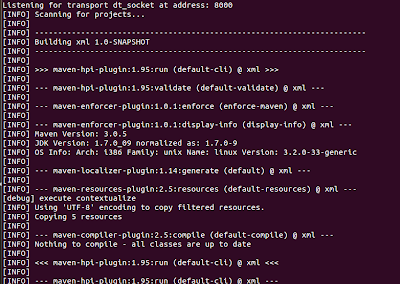
export MAVEN_OPTS="-Xdebug -Xrunjdwp:transport=dt_socket,server=y,address=8000,suspend=n"
mvn hpi:run


Step 6: Open your favorite Browser and go to http://127.0.0.1:8080 which will show you following screen

Step 7: Create a new Job and in build steps you can see "Say Hello world" as a Task. Add this with some name.

Step 8: Now build this project and you can see Hello world output as shown below

~ Yananarayana Dande


Monday, July 22, 2013

Jenkins - A Centralized Tool to run your Automated Tests

Most of the times Test team will end up writing different test harnesses to test different components and there should be  a platform from which a user can start a run of specific automation suite on a specified environment with given configurations remotely using a web page. For achieving this and other features listed below I was given a task by my manager to design a Tool. 

I have selected Jenkins and customized it to achieve this. 

Features
  • Single Sign-on for all your Automation Needs
  • Common Console for starting any Automation Run
  • Configure all your Automation Suites from a single place
  • Horizontal coverage by adding all automation suites 
  • Vertical dig down possible for an Automation Engineer to understand root cause for Test failures
  • Email Notification once run in completed
  • Confluence Page is updated with results/custom message once run is completed
  • Code Coverage can be published
How to Achieve this
  1. Install Jenkins 
    1. Follow instructions given at https://wiki.jenkins-ci.org/display/JENKINS/Installing+Jenkins
  2. User Management
    1. Use LDAP Plugin by following instructions given at https://wiki.jenkins-ci.org/display/JENKINS/LDAP+Plugin
  3. To change standard Appearance to suite your organizational rules 
    1. Use Simple Theme Plugin by following instructions given at https://wiki.jenkins-ci.org/display/JENKINS/Simple+Theme+Plugin
    2. Use Dashboard View Plugin by following instructions given at https://wiki.jenkins-ci.org/display/JENKINS/Dashboard+View  
  4. To add and manage nodes
    1. Use Node and Label parameter plugin by following instructions given at  https://wiki.jenkins-ci.org/display/JENKINS/NodeLabel+Parameter+Plugin
    2. Use Multi Slave config plugin by following instructions given at https://wiki.jenkins-ci.org/display/JENKINS/Multi+slave+config+plugin
    3. Use Jenkins Slave Setup Plugin by following instructions given at  https://wiki.jenkins-ci.org/display/JENKINS/Slave+Setup+Plugin
  5. For Code Control
    1. Use Git Plugin by following instructions given at https://wiki.jenkins-ci.org/display/JENKINS/Git+Plugin
  6. Build
    1. Use Jenkins Gradle Plugin by following instructions given at  https://wiki.jenkins-ci.org/display/JENKINS/Gradle+Plugin
  7. Test Results
    1. Copy To Slave Plugin has Bug - JENKINS-14578 so we decided using NFS instead
    2. Use TestNG Results Plugin  by following instructions given at https://wiki.jenkins-ci.org/display/JENKINS/testng-plugin
  8. Publish
    1. Use build-user-vars-plugin by following instructions given at https://wiki.jenkins-ci.org/display/JENKINS/Build+User+Vars+Plugin
    2. Use Jenkins Email Extension Plugin by following instructions given at https://wiki.jenkins-ci.org/display/JENKINS/Email-ext+plugin
    3. Use Confluence Plugin by following instructions given at https://wiki.jenkins-ci.org/display/JENKINS/Confluence+Publisher+Plugin
  9. Code Coverage Tool
    1. Use Jenkins Cobertura Plugin  by following instructions given at https://wiki.jenkins-ci.org/display/JENKINS/Cobertura+Plugin

Adding a New Slave


  1. As a first step add a slave node in Jenkins UI


Start Slave process

  • wget http://[your jenkins host]:[port number]/jnlpJars/slave.jar
  • ${NOHUP} ${JAVA} -jar slave.jar -jnlpUrl http://SERVERNAME:PORT/computer/USER__NODENAME/slave-agent.jnlp &

Then you can see the slave at Slaves Page


Configuring a New Project

  • Fill the Project name, description for the project and Location of code on github
     
  • Add Parameters required for the project to run. So these are called as build Parameters, which means these will change per build.
  • Bind this project to a given node
  • Use Custom workspace to parse your results
  • Give the build steps
  • Specify files to be processed by testng-plugin for giving results and to create trend graph
  • Create an editable e-mail notification as a Post Step so that it sends email notification to selected people in the organisation in the given format
  • Create a Publish Task as Post build step to publish your results in Confluence


Your centralized Tool is ready and you can run your Automated Tests now :) 

Build Now(Run Tests)

From left hand pane in the project page say "Build Now" and it will take you to following screen

Now give the build parameters and say build. This will start running your test cases.

Tests' output in Console

You can have a look at the running tests in the console (Select console from Left Pane) as shown below


Also once tests are completed you can see the TestNg reports and Trends as shown below


Also you can see from which build this test cases is failing when you dig the links in TestNG reports


Dashboard

You can collect different statistics on a dashboard page as shown below


Also an email Notification is sent after the run

Confluence Update

After every run it will update the results in the configured confluence page

Happy Testing :)

~Yagnanarayana Dande


Wednesday, August 22, 2012

Robot Test Automation Framework - Write your test library in Python and/or Java


             In this tutorial I will help you to write a simple program in Robot Test Framework. As usual we will start with installation.

             For Robot to work we need Python, Jython, WxPython to be installed on the machine. So lets first install them before we do anything else.
Python Installation 
Step 1: Download Python for Windows from http://www.python.org/getit/windows/ and doubleclick on the installer


Step 2: Complete the installation


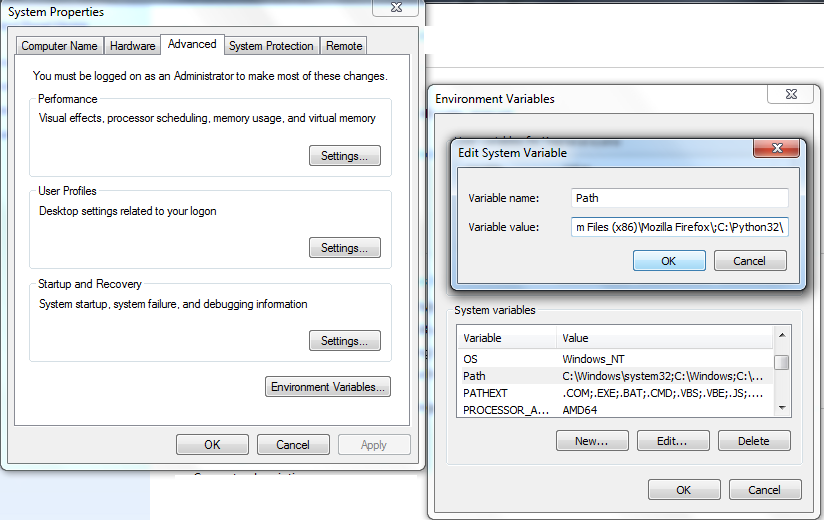
Step 3: Put Python bin directory in the environment Variable PATH


Step 4: Verify the installation by typing 'python' on your command prompt


Jython Installation 
          Using test libraries implemented with Java or using Java tools internally requires running Robot Framework on Jython, which in turn requires Java Runtime Environment (JRE). 

           Installing Jython is a fairly easy procedure, and the first step is getting an installer from http://jython.org. The installer is an executable JAR package, which you can run from the command line like java -jar jython_installer-<version>.jar. 

           Depending on the system configuration, it may also be possible to just double-click the installer.

Step 1: Download Jython for Windows from http://jython.org/downloads.html and on command prompt type 'java -jar jython_installer-<version>.jar' where <version> needs to be replaced by the actual version


Step 2: Complete the installation process


Robot Installation
Step 1: Download Robot for Windows from http://downloads.robotframework.org/ and double click on the installer


Step 2: Complete the installation process


 WxPython Installation
Step 1: Download WxPython for Windows from http://wxpython.org/download.php#stable and double click on the installer


Robot-RIDE Installation
Step 1: Download Robot-RIDE for Windows from https://github.com/robotframework/RIDE/downloads/ and double click on the installer

Step 2: On command prompt go to scripts directory where python is installed <PYTHON_INSTALLED_DIR>\scripts and type 'ride.pyc'. You will see following screen where you can write your Test cases


Writing simple Test Case in Robot-RIDE
         Let us write a Test Case to check whether a particular directory exists or not on our machine.
     
        From file menu select new project give it some name like Example. Now right click on this project and select New Test Case. Give it some name like My Test. Also right click on project and select New User Keyword and give a name like My Keyword.

       There are some libraries which are by default provided by Robot like OperatingSystem which provides functionality of some operating system keywords like File operations, directory operations, etc...

        So we first import this library in the Project Page. Also Add Scalars for all variables you need to use in your Tests like path and MESSAGE in this case.


                    In the Test Case page, write your test case like <keyword> and <arg1> <arg2> .... In this case Log and My Keyword are keywords and ${MESSAGE} and ${path} are args.


                 Where My Keyword is a keyword created by user by adding some available keywords from library as show below. In this case we are using Directory Should Exist keyword and argument as ${path}.


 Running Test Case in Robot-RIDE
           Simply hit the Run button shown as "robot face" in the robot-RIDE screen.


Logs of Test Case in Robot-RIDE
          Below is a sample log file


Reports in Robot-RIDE
          This is a sample report in Robot-RIDE


We can also write our own libraries in Robot using either Java or Python. We will look into it in later posts.

~Yagnanarayana Dande

Thursday, January 12, 2012

Running Hadoop Pig Scripts with MapR Demo VM


What is Hadoop Pig?

Apache Pig is a platform for analyzing large data sets. Pig's language, Pig Latin, lets you specify a sequence of data transformations such as merging data sets, filtering them, and applying functions to records or groups of records. Pig comes with many built-in functions but you can also create your own user-defined functions to do special-purpose processing.

Pig Latin programs run in a distributed fashion on a cluster (programs are complied into Map/Reduce jobs and executed using Hadoop). For quick prototyping, Pig Latin programs can also run in "local mode" without a cluster (all processing takes place in a single local JVM).

How to install?

Download VMWare Player at
http://downloads.vmware.com/d/info/desktop_downloads/vmware_player/3_0
Download MapR Demo VM at
http://package.mapr.com/releases/v1.2.0/vmdemo/MapR-VM-1.2.0.12140GA-1-m3.tar.bzip2

1. Extract this using
bunzip2 MapR-VM-1.2.0.12140GA-1-m3.tar.bzip2 (This shows some errors but you can ignore them)
tar -xvf MapR-VM-1.2.0.12140GA-1-m3.tar (if output file is not .tar and is tar,out still its okay)
2. After untartting this transfer it to Windows machine
3. Install VMWare Player and start the Demo VM


How to Run it?

local mode


mapreduce mode


Problem to Solve

Marks of Students in Unit Test1 in Subjects Telugu, Hindi, English, Maths, Science and Social respectively. Now Class Teacher wants to Find all the students who are Failed?


Pig Script to solve this

A = load 'Unit1' using PigStorage('\t') as (Name:chararray,Telugu:int,Hindi:int,English:int,Maths:int,Science:int,Social:int);

B = filter A by Telugu < 35 OR Hindi < 35 OR English < 35 OR Maths < 35 OR Science < 35 OR Social < 35;


DUMP B;


Here is the Output of the Pig Script


Monday, December 5, 2011

TestNG - Run your first test using ant

Let us write our First Test in TestNG and run as an ant task

Create Directory Tree Structure  as follows

testng(Base Directory)
    |
    +-------+-------------------------+---------------+------------+
    |          |                          |                 |           |
    src    lib                       build.xml  build    test-output/index.html
     |          |                                         |            |
    com testng-6.3.1.jar                  com           +-------+-----+---
      |                                                 |        index.html
     qa                                              qa
       |                                                 |
     OurFirstTestNGTest.java            OurFirstTestNGTest.class

Where as

OurFirstTestNGTest.java contains
=============================
package com.qa;

import org.testng.annotations.*;
import org.testng.*;

public class OurFirstTestNGTest {
    int testInt;

    @BeforeMethod
    public void setUp() {
        testInt = 0;
    }

    @Test
    public void addTest() {
        testInt++;
        Assert.assertEquals(testInt,1);
        System.out.println("Addition Test");
    }

    @Test
    public void subtractTest() {
        testInt--;
        Assert.assertEquals(testInt,-1);
        System.out.println("Subtract Test");
    }
}
=============================

build.xml contains
=============================
<project default="test">

 <path id="cp">
   <pathelement location="lib/testng-6.3.1.jar"/>
   <pathelement location="build"/>
 </path>

 <taskdef name="testng" classpathref="cp"
          classname="org.testng.TestNGAntTask" />

 <target name="test">
   <testng classpathref="cp">
     <classfileset dir="build" includes="**/*.class"/>
   </testng>
 </target>

</project>
=============================


Now to Compile a java class, use
#javac -classpath .:../lib/testng-6.3.1.jar -d ../build com/qa/OurFirstTestNGTest.java

To run using ant
#ant test

TestNG - Run your First Test

From TestNG official site, 

"TestNG is a testing framework inspired from JUnit and NUnit but introducing some new functionalities that make it more powerful and easier to use".

It was voted for over JUnit because of better reporting and executing capabilities from Testing team's perspective.

From deployment point of view, TestNG is just a jar file which can be copied onto a local machine and can be used by putting it in classpath. TestNG can be downloaded @ http://testng.org/doc/download.html

Let us write our First Test in TestNG.

Create Directory Tree Structure  as follows

testng(Base Directory)
    |
    +-------+-----+------------------------------+---------+
    |          |     |                                  |           |
    src    lib  testng.xml                    build    test-output/index.html
     |          |                                         |            |
    com testng-6.3.1.jar                  com           +---------+-------+---
      |                                                 |        index.html
     qa                                              qa
       |                                                 |
     OurFirstTestNGTest.java            OurFirstTestNGTest.class

Where as

OurFirstTestNGTest.java contains
=============================
package com.qa;

import org.testng.annotations.*;
import org.testng.*;

public class OurFirstTestNGTest {
    int testInt;

    @BeforeMethod
    public void setUp() {
        testInt = 0;
    }

    @Test
    public void addTest() {
        testInt++;
        Assert.assertEquals(testInt,1);
        System.out.println("Addition Test");
    }

    @Test
    public void subtractTest() {
        testInt--;
        Assert.assertEquals(testInt,-1);
        System.out.println("Subtract Test");
    }
}
=============================


testng.xml contains
============================
<!DOCTYPE suite SYSTEM "http://testng.org/testng-1.0.dtd" >
<suite name="test">
  <test name="test">
    <classes>
       <class dir="build" name="com.qa.OurFirstTestNGTest" />
    </classes>
  </test>
</suite>
============================

Now to Compile a java class, use
#javac -classpath .:../lib/testng-6.3.1.jar -d ../build com/qa/OurFirstTestNGTest.java

and to run the tests, use
#java -classpath .:build:./lib/testng-6.3.1.jar org.testng.TestNG testng.xml

Sunday, February 27, 2011

Pseudo-randomness - An essential ingredient of Software Test Automation

Many of us may be reluctant to consider random testing as a testing technique. But study in [1] indicates that random testing is more cost effective for many softwares.

This form of testing is useful when the time needed to implement and execute test case sequence is too long or the complexity of the problem makes it impossible to test every combination. Most of the times certain amount of Random Testing is mandatory before release which will be specified in the Release criteria.

Random testing is also known as Gorilla testing . In it we don't test the application sequentially, we just take the modules/fields randomly & perform testing whether it's functioning properly.


In this method test case/ test data is selected randomly. Even the slightest bugs can be discovered with minimal cost. It can also compete with other test techniques in terms of coverage. A hybrid approach by combing random testing with other testing techniques may yield good results.

Random Testing can imply any of the following
  1. Input Data generation
    Example: You need to test new functionality of your application. For testing you randomly generate data for all existing and new fields in the application under test. 
  2. Selection of Test Cases
    Example: You need to test new functionality of your application. For testing you randomly select test cases for the application under test.
But the biggest problem with Random Testing is the Randomness it self. "How to reproduce the bug?" is the biggest question as the steps taken are truly Random.
 This is the place where pseudo-randomness came to rescue.

According to Wikipedia: A pseudorandom process is a process that appears to be random but it is not. Pseudorandom sequences typically exhibit statistical randomness while being generated by an entirely deterministic causal process. Such a process is easier to produce than a genuine random one, and has the benefit that it can be used again and again to produce exactly the same numbers, useful for testing and fixing software.

Let us write a small program and see how does pseudo-randomness work

In the below program we will try to generate a set of 50 random numbers which are in between 0 and 100.

import java.util.Random;

public class PseudoRandom{
  public static void main(String[] args)
                throws NumberFormatException{
    if(args.length>0){
      Long seed = Long.parseLong(args[0]);
      Random pseudo = new Random( seed );
      for ( int i=0; i<50; i++ )
      {
         // This will generate random number
         // in between 0 and 100
         int number = pseudo.nextInt( 101 );
         System.out.print( number+"," );
      }
      System.out.println("Done...");
    }else{
      System.out.println("Usage: \t PseudoRandom seed");
      System.out.println("\t Where seed is any number which
      can be used \n\t again and again to produce
      exactly the same numbers");
      System.out.println("");
      System.out.println("Example:  PseudoRandom 284");
    }
  }
}

Usage of this program

java PseudoRandom
Usage: PseudoRandom seed
     Where seed is any number which can be used
     again and again to produce exactly the same numbers

Example: PseudoRandom 284


Run the Program

qa-by-passion:/qa# java PseudoRandom 284
2,28,50,35,1,75,6,29,49,15,44,21,62,42,26,69,2,17,34,6,98,67,15,58,69,22,90,45,16,70,64,3,72,4,41,63,62,46,37,91,35,99,4,95,67,72,100,85,68,46,Done...
qa-by-passion:/qa#  java PseudoRandom 284
2,28,50,35,1,75,6,29,49,15,44,21,62,42,26,69,2,17,34,6,98,67,15,58,69,22,90,45,16,70,64,3,72,4,41,63,62,46,37,91,35,99,4,95,67,72,100,85,68,46,Done...
qa-by-passion:/qa#  java PseudoRandom 284
2,28,50,35,1,75,6,29,49,15,44,21,62,42,26,69,2,17,34,6,98,67,15,58,69,22,90,45,16,70,64,3,72,4,41,63,62,46,37,91,35,99,4,95,67,72,100,85,68,46,Done...
qa-by-passion:/qa#  java PseudoRandom 316
70,79,19,5,31,73,87,83,35,71,21,64,77,100,50,99,90,28,52,83,96,32,93,32,5,48,93,52,25,73,27,100,28,3,54,35,21,52,73,78,69,0,32,74,72,35,86,30,80,55,Done...
qa-by-passion:/qa#  java PseudoRandom 675
19,33,4,82,93,94,31,49,2,31,4,84,11,0,97,36,25,87,75,28,3,71,96,84,3,17,50,34,86,18,29,59,15,99,78,98,4,99,88,59,23,1,49,77,74,14,55,9,75,27,Done...
qa-by-passion:/qa#  java PseudoRandom 284
2,28,50,35,1,75,6,29,49,15,44,21,62,42,26,69,2,17,34,6,98,67,15,58,69,22,90,45,16,70,64,3,72,4,41,63,62,46,37,91,35,99,4,95,67,72,100,85,68,46,Done...

Analysis

If we observe the results of the above run we can see when ever the seed is the same the set of numbers are same. This is a way to create pseudo randomness where numbers are generated randomly but can repeat the same results whenever required by providing same seed.


How to use?

This behavior will be very useful for situations where reproducing the same scenarios is required.

For this purpose we can use following logic.

Put all the test cases in an Array List<String>
Create a set of Random numbers which are in between 0 and Size of Array List. Now get the elements with that index and execute tests (in TestNG) as follows

ant -Dtestcase=ArrayList[RandNumber]

For generating every set use a seed as discussed earlier and if you hit a bug with some set of tests then you can re-execute same set of tests in same order by just providing the same seed.

I hope this explains the importance of Pseudo-randomness

References:
------------------
[1] Joe W. Duran, Simeon C. Ntafos, "An Evaluation of Random Testing", IEEE Transactions on Software Engineering, Vol. SE-10, No. 4, July 1984, pp438-443.